Garmin + intervals.icu sync
Brotein.pro reads workouts from intervals.icu. Connect Garmin there, backfill activities and wellness separately, then refresh in Brotein.pro.
Garmin → intervals.icu → Brotein.pro. Brotein.pro cannot pull directly from Garmin.
- 1
Connect intervals.icu in Brotein.pro
In the Brotein.pro dashboard sidebar, open Integrations and click Connect next to intervals.icu. Authorize Brotein.pro in intervals.icu.
- 2
Link Garmin in intervals.icu
Open intervals.icu → Settings → Connections. Connect Garmin and enable the sync checkboxes for activities (and wellness if you use it).
- 3
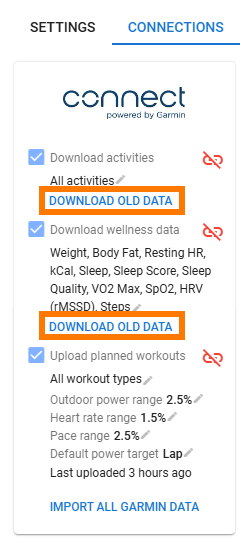
Download old data (activities + wellness)
On the Connections tab, click Download old data separately for activities and for wellness. Do not use Import All Garmin Data.
Important: use Download old data for activities and wellness separately — not Import All Garmin Data.
- 4
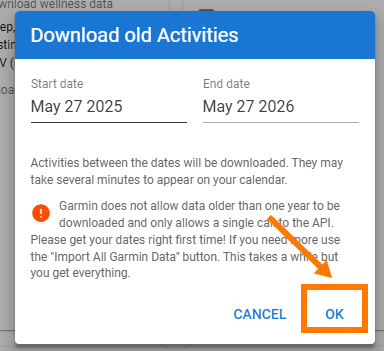
Set the date range for activities
In the Download old Activities modal, pick a date range and click OK. Garmin allows roughly one year of history per API request — repeat for older seasons if needed.
- 5
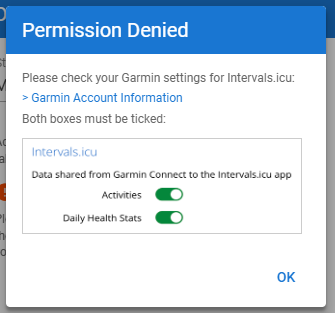
Fix Garmin permission denied
If you see Permission Denied, open your Garmin account settings and enable both toggles for Intervals.icu: Activities and Daily Health Stats. Then retry Download old data in ICU.
- 6
Refresh in Brotein.pro
Return to Brotein.pro → Integrations → intervals.icu and click Refresh from ICU. Completed sessions will appear under Workouts.
Optional: Record Temperature on Garmin
If outdoor workouts have no temperature in Brotein.pro, turn on Record Temperature on the watch: Activities & Apps → [outdoor profile, e.g. Run] → Record Temperature → On. Enable per activity type. Only new activities get temp in FIT → ICU → Brotein; older ones won’t backfill. Wrist temp can read high from body heat. ICU forecast overlay is separate and not required.